

Connecting to a Backend
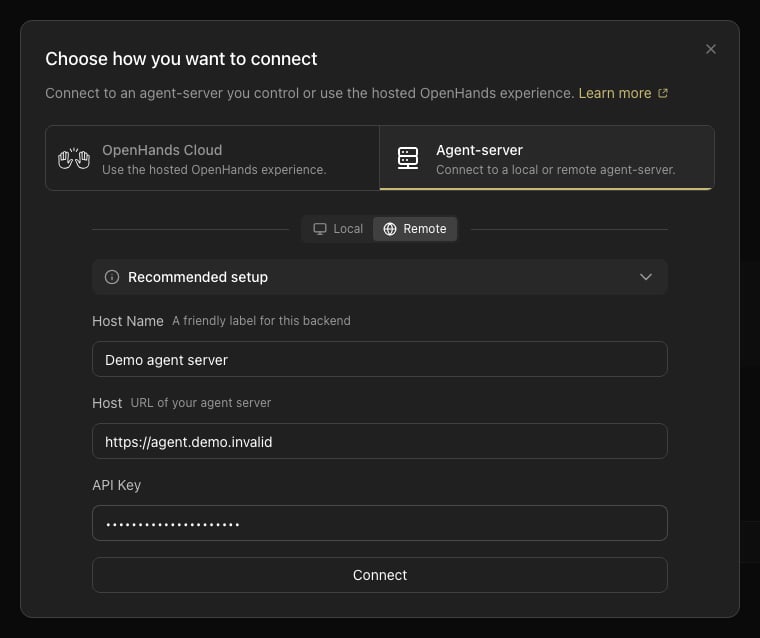
Any Agent Canvas frontend can connect to any Agent Canvas backend. Use the backend switcher in the UI to open Manage Backends, where you can add, edit, or remove entries. Each entry stores a display name, host URL, and an API key for authentication. Settings, LLM configuration, MCP servers, and automations are all scoped to the active backend — switching backends switches all of these.Recommended Setups
| Setup | When to use | How |
|---|---|---|
| Default local | Quick local work on your machine | Run agent-canvas — a local backend is created automatically |
| Backend-only (local) | Multiple projects, or separate frontend and backend processes | Run agent-canvas --backend-only (optionally on different ports), connect with --frontend-only. See Local Backend. |
| Self-hosted VM | Always-on server, more powerful hardware, team-shared access, or a full self-hosted Canvas | Run agent-canvas --backend-only --public for backend-only mode, or agent-canvas --public for the full UI and backend. Expose it with SSH, ngrok, or a reverse proxy. See VM / Self-Hosted Installation. |
| Cloud | Managed sandboxes without local resources | Connect to OpenHands Cloud from Manage Backends. See Cloud Backend. |

