

DigitalOcean Managed Agents is in public preview, and DigitalOcean bills sandbox usage to your DigitalOcean account. Your LLM provider bills model usage separately.
When to Use It
A DigitalOcean backend is a good fit when you want to:- Run agents in isolated cloud sandboxes without managing a VM, Docker host, or Kubernetes cluster
- Pay only while a sandbox is working: idle sessions pause automatically and stop compute charges
- Keep separate, disposable environments for separate tasks
- Keep using the Agent Canvas desktop app on your own machine
Prerequisites
- The Agent Canvas desktop app, version 1.27.0 or later. To use the browser version instead, see Use It From the Web Build.
- A DigitalOcean account with a payment method and funds in at least one balance.
- A DigitalOcean personal access token for the team you want to use. See Create a Token.
- An API key for your LLM provider. You add it after connecting.
1. Create a Token
- Sign in to the DigitalOcean control panel and switch to the team you want Agent Canvas to use.
- Open API → Tokens and select Generate New Token.
- Give the token a name and an expiration, and grant it Full Access.
- Copy the token. DigitalOcean only shows it once.
2. Connect Agent Canvas
- Open the backend switcher in the top bar and choose Manage Backends → Add Backend.
-
Under Choose how you want to connect, select the Providers tab, then DigitalOcean.
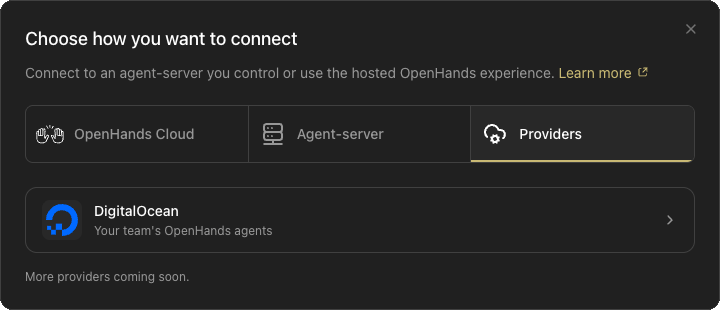
- Paste the token into Personal access token and select Connect with token.
3. Create an Agent
A DigitalOcean agent is a saved setup for OpenHands sessions. Each session you launch from it is a separate sandbox with its own disk and conversations. After you sign in, the DigitalOcean panel lists your team’s OpenHands agents. Each row shows the agent’s latest session status, and the footer shows the connection you signed in with and a Sign out button.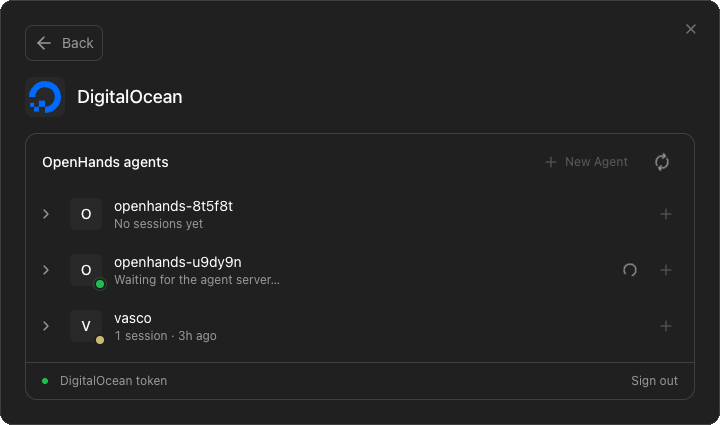
- In the OpenHands agents list, select New Agent.
- Enter an Agent name: up to 64 letters, numbers,
-,., or_, starting and ending with a letter or number. - Choose a Sandbox size, or keep Default (DigitalOcean picks). Each option shows its vCPUs, memory, and monthly price.
- Select Create and launch.
Sandbox size applies to every session of an agent and cannot be changed later. To use a different size, create another agent.
4. Wait for the Session to Start
Agent Canvas launches the agent’s first session and connects to it. The status moves through Waking the session…, Connecting to the session…, and Waiting for the agent server…. A new sandbox can take a few minutes to start; resuming a paused session is faster. When the session is ready, Agent Canvas adds it as a backend named after the session, selects it, and opens a new conversation.5. Set Up Your Model
Each session has its own agent-server, so it starts without an LLM configured.- Open Settings → LLM.
- Add an LLM profile with your provider, model, and API key.
- Start a conversation.
digitalocean provider in the LLM profile and enter a DigitalOcean model access key. See DigitalOcean Inference.
Your LLM key is stored inside the session’s sandbox, not in the DigitalOcean agent. Every new session needs its own LLM setup.
Work With Agents and Sessions
While a DigitalOcean backend is selected, the sidebar shows the agent’s sessions instead of the usual conversation list. The current session expands to show its conversations.- Select + in the sidebar header to launch a New session for the same agent.
- Open the agent menu to Switch agent or Manage agents.
- Manage agents opens the full DigitalOcean view, where you can search, filter, and act on every agent and session.
Session Status
Session and Agent Actions
Disconnecting vs. Stopping
When you remove a DigitalOcean backend in Manage Backends, Agent Canvas asks what to do:- Disconnect only removes the backend from Agent Canvas. The session keeps running, and billing, until it pauses on its own. You can reconnect from Manage agents.
- Stop session ends the session and deletes its sandbox, then removes the backend.
Reconnecting After a Restart
The desktop app keeps the backend entry when you quit, but the connection to the sandbox closes. When you reopen the app, Agent Canvas reconnects to the selected DigitalOcean backend automatically. A DigitalOcean backend can show as disconnected in Manage Backends while it is not selected. Select it to reconnect.In the web build or Docker, the token is not kept across restarts, even with a persistent settings volume. To stay signed in, load
MARS_TOKEN from an env file each time you start the server or container. See Store Your Token in an Env File.Costs
DigitalOcean bills each session for the CPU it actually uses, its peak memory, and its storage. See Harness Runtime pricing for current rates and sandbox sizes. To keep costs down:- Let idle sessions pause. DigitalOcean pauses a session after 15 minutes without activity. A paused session stops compute charges but still pays for storage.
- Switch away when you are done. Agent Canvas checks only the selected backend, so a session you are not using can go idle and pause.
- Stop sessions you no longer need. Stopping deletes the sandbox and its storage charges.
- Pick the smallest size that works. The default size suits most coding tasks.
Security
- In the desktop app, your DigitalOcean token stays in the desktop process and is never sent to the web page. Revoke the token in DigitalOcean to disconnect Agent Canvas.
- In the web build, anyone who can read your env file can use your DigitalOcean account. Keep the file readable only by you (
chmod 600) and out of version control. Revoke the token in DigitalOcean if the file is exposed. - Each session runs in its own microVM, separate from your machine and from other sessions.
- Secrets and API keys you add in a session’s settings are stored in that sandbox. The agent can read them while it works, as with any backend.
- Sessions can reach the public internet. They cannot reach private DigitalOcean VPC resources.
- Everyone on a DigitalOcean team can see that team’s OpenHands agents and sessions.
Use It From the Web Build
The DigitalOcean option appears in the browser version of Agent Canvas only when the server that hosts it opts in. Set these environment variables on that server, not in the browser:
The web build, including Docker, uses personal access tokens and does not offer OAuth sign-in. Tokens entered in the UI stay in server memory, not in the settings volume. After each container or server restart, enter the token again unless you supply
MARS_TOKEN at startup.
For Docker, explicitly set MARS_WEB=1. Images that require opt-in leave the integration disabled without it. Because Docker binds to a non-loopback address inside the container, the bridge requires an authentication key and refuses to start without one. The official image always supplies one: if you set neither LOCAL_BACKEND_API_KEY nor MARS_WEB_KEY, it generates a session key on first start, as described in Environment Variables. The Docker example below sets LOCAL_BACKEND_API_KEY so you know the key’s value and the bridge and local backend share it.
For CLI and source launches, the launcher can supply the session key.
Store Your Token in an Env File
KeepMARS_TOKEN in an env file rather than typing it into commands. A token typed into a command is saved in your shell history and can show up in process listings. With an env file, every start uses the same values, and Agent Canvas signs in to DigitalOcean automatically.
- Installed CLI or npx
- Docker
- From source (npm run dev)
The installed CLI does not read env files on its own. Create Open the file in a text editor and add:Load the file in the same command that starts Agent Canvas:For
~/.agent-canvas.env, the same file used in VM / Self-Hosted Installation, and make it readable only by you:npx, replace agent-canvas with npx @openhands/agent-canvas.Persist Sign-In Across Restarts
The bridge does not save your DigitalOcean token to disk. A token you enter in the UI lasts only until the server or container stops. To stay signed in, load your env file every time you start Agent Canvas, as shown in Store Your Token in an Env File. For Docker, that includes each time you recreate the container. When the token expires or you revoke it, replaceMARS_TOKEN in the env file and restart Agent Canvas.