> ## Documentation Index
> Fetch the complete documentation index at: https://docs.openhands.dev/llms.txt
> Use this file to discover all available pages before exploring further.
# Jira Data Center Integration (Coming soon...)
> Complete guide for setting up Jira Data Center integration with OpenHands Cloud, including service account creation, personal access token generation, webhook configuration, and workspace integration setup.
# Jira Data Center Integration
## Platform Configuration
### Step 1: Create Service Account
1. **Access User Management**
* Log in to Jira Data Center as administrator
* Go to **Administration** > **User Management**
2. **Create User**
* Click **Create User**
* Username: `openhands-agent`
* Full Name: `OpenHands Agent`
* Email: `openhands@yourcompany.com` (replace with your preferred service account email)
* Password: Set a secure password
* Click **Create**
3. **Assign Permissions**
* Add user to appropriate groups
* Ensure access to relevant projects
* Grant necessary project permissions
### Step 2: Generate API Token
1. **Personal Access Tokens**
* Log in as the service account
* Go to **Profile** > **Personal Access Tokens**
* Click **Create token**
* Name: `OpenHands Cloud Integration`
* Expiry: Set appropriate expiration (recommend 1 year)
* Click **Create**
* **Important**: Copy and store the token securely
### Step 3: Configure Webhook
1. **Create Webhook**
* Go to **Administration** > **System** > **WebHooks**
* Click **Create a WebHook**
* **Name**: `OpenHands Cloud Integration`
* **URL**: `https://app.all-hands.dev/integration/jira-dc/events`
* Set a suitable webhook secret
* **Issue related events**: Select the following:
* Issue updated
* Comment created
* **JQL Filter**: Leave empty (or customize as needed)
* Click **Create**
* **Important**: Copy and store the webhook secret securely (you'll need this for workspace integration)
***
## Workspace Integration
### Step 1: Log in to OpenHands Cloud
1. **Navigate and Authenticate**
* Go to [OpenHands Cloud](https://app.all-hands.dev/)
* Sign in with your Git provider (GitHub, GitLab, or BitBucket)
* **Important:** Make sure you're signing in with the same Git provider account that contains the repositories you want the OpenHands agent to work on.
### Step 2: Configure Jira Data Center Integration
1. **Access Integration Settings**
* Navigate to **Settings** > **Integrations**
* Locate **Jira Data Center** section
2. **Configure Workspace**
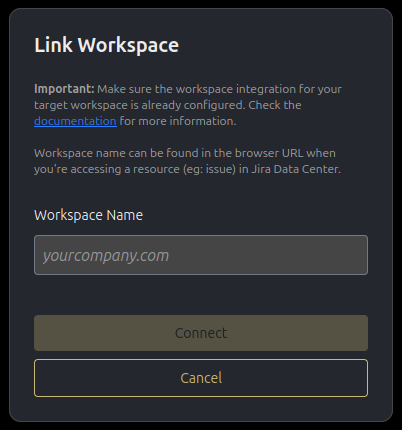
* Click **Configure** button
* Enter your workspace name and click **Connect**
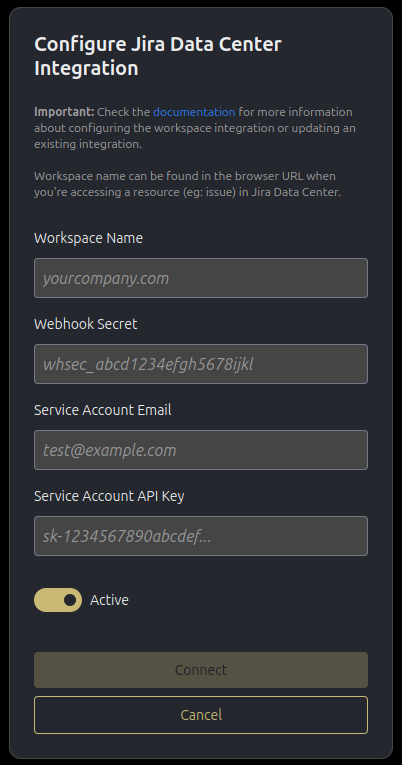
* If no integration exists, you'll be prompted to enter additional credentials required for the workspace integration:
* **Webhook Secret**: The webhook secret from Step 3 above
* **Service Account Email**: The service account email from Step 1 above
* **Service Account API Key**: The personal access token from Step 2 above
* Ensure **Active** toggle is enabled
Workspace name is the host name of your Jira Data Center instance.
Eg: [http://jira.all-hands.dev/projects/OH/issues/OH-77](http://jira.all-hands.dev/projects/OH/issues/OH-77)
Here the workspace name is **jira.all-hands.dev**.
3. **Complete OAuth Flow**
* You'll be redirected to Jira Data Center to complete OAuth verification
* Grant the necessary permissions to verify your workspace access. If you have access to multiple workspaces, select the correct one that you initially provided
* If successful, you will be redirected back to the **Integrations** settings in the OpenHands Cloud UI
### Managing Your Integration
**Edit Configuration:**
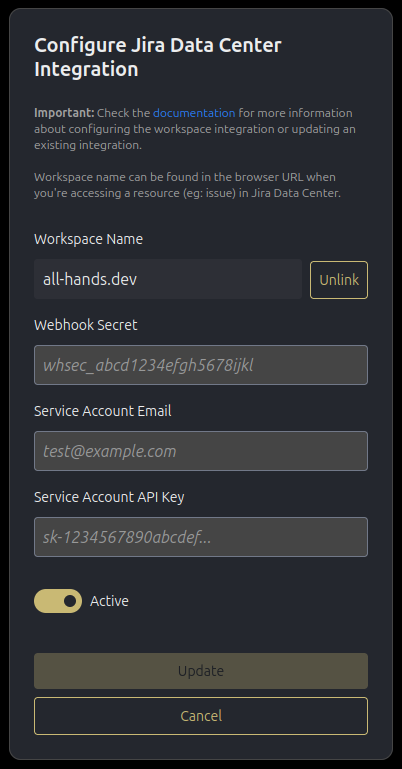
* Click the **Edit** button next to your configured platform
* Update any necessary credentials or settings
* Click **Update** to apply changes
* You will need to repeat the OAuth flow as before
* **Important:** Only the original user who created the integration can see the edit view
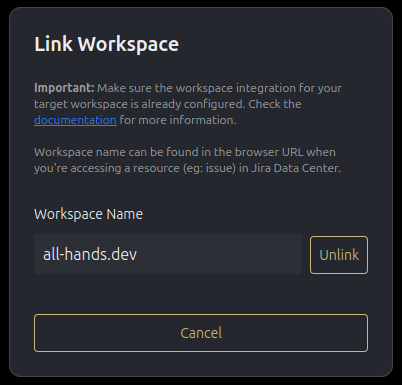
**Unlink Workspace:**
* In the edit view, click **Unlink** next to the workspace name
* This will deactivate your workspace link
* **Important:** If the original user who configured the integration chooses to unlink their integration, any users currently linked to that integration will also be unlinked, and the workspace integration will be deactivated. The integration can only be reactivated by the original user.
### Screenshots
 Built with [Mintlify](https://mintlify.com).